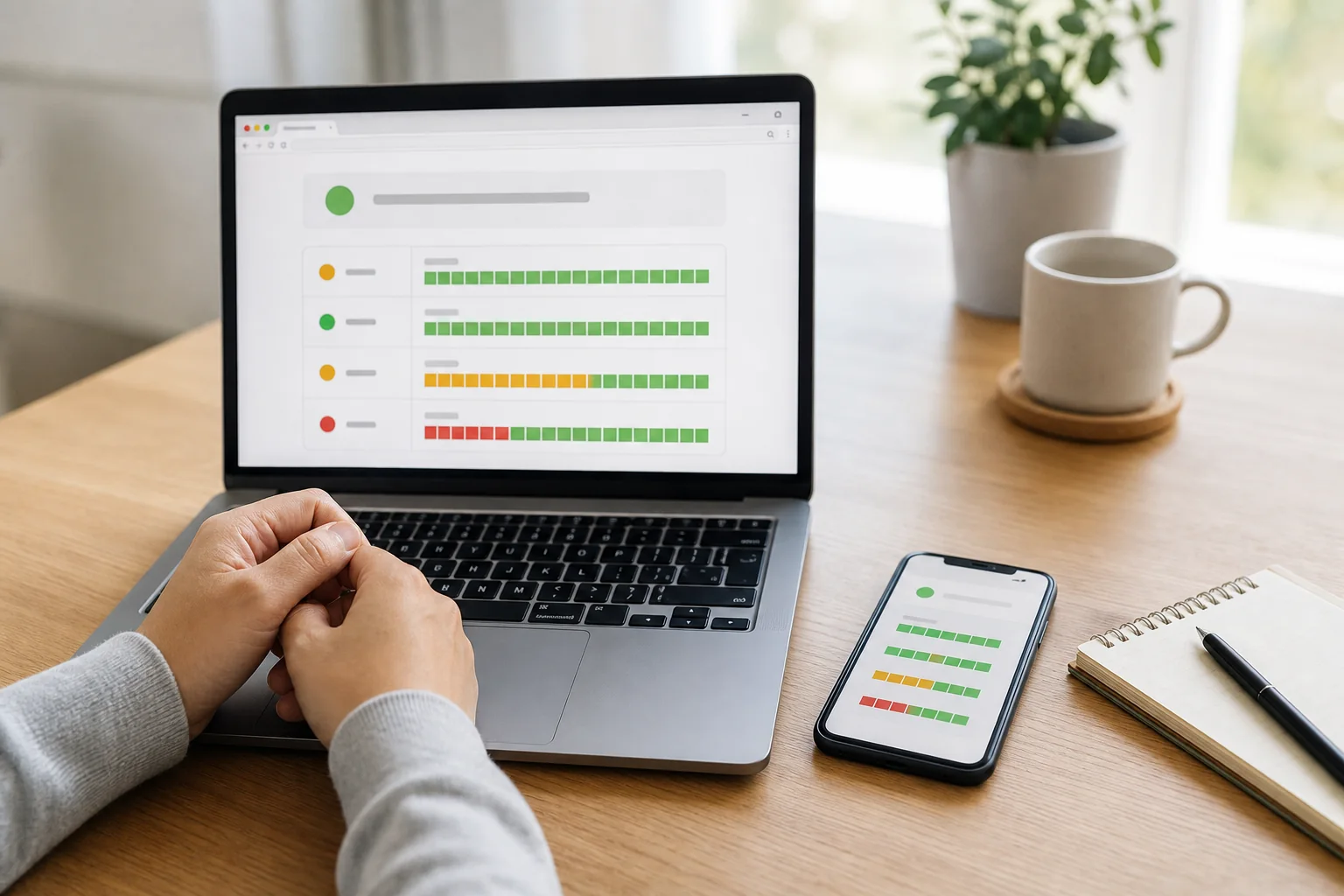
Start with the official status page
If ChatGPT will not load a conversation or repeatedly shows “Something went wrong,” open status.openai.com first. The incident that began on July 25 moved through investigation, mitigation, and monitoring before OpenAI marked it resolved on July 27. Its separate incident record remains useful after the home page returns to green.
When an official incident is already listed, avoid making sweeping changes to your device straight away. Read the latest update and give the service time to recover. Always use the live status page rather than the historical example in this article, because service state can change quickly.
Four details on an incident page tell you most of what matters
Open an incident and look at its title, current phase, affected component, and latest timestamp. “Investigating” means the cause is still being examined, “Identified” means a cause has been found, “Monitoring” means a mitigation is in place and recovery is being watched, and “Resolved” marks the official end of the incident.
You can subscribe to updates and view past incidents from the status site. OpenAI also cautions that its availability figures are aggregated across tiers, models, and error types. Your account can therefore behave differently from the headline status, and a green page does not rule out every local or account-specific problem.
If no incident is listed, separate the browser from the service
The next step is comparison, not guesswork. Try a private window or a different browser, then compare another device or network if available. Browser extensions, VPNs, proxies, secure DNS tools, and workplace or school filters can all interfere with a ChatGPT connection.
A problem that appears in one browser but not another points towards that browser profile or one of its extensions. If the same error continues across devices and networks, keep the exact message and timestamp, then check the official status page again for a new update.
- Open a private window or a different browser.
- Temporarily compare with blocking or security extensions disabled.
- Turn off a VPN, proxy, or secure DNS filter for the test.
- Compare Wi-Fi with a mobile data connection.
- If one conversation fails, check whether a new conversation does too.

For an endless spinner, begin with the least disruptive steps
OpenAI’s troubleshooting guide suggests waiting 30–60 seconds, then stopping and regenerating the response, trying a new chat, and refreshing or reopening the app. Copy a long prompt into a separate note before resending it.
If the problem continues, move on to signing out and back in, a private window with extensions disabled, and a different network or device. Clearing site data and cookies can remove your session and local state, so leave it until the lighter checks have failed.
Avoid turning one failure into several confusing retries
Sending the same prompt rapidly in several tabs can make it harder to tell which request completed. Save the draft, wait for the official recovery update when there is an incident, and retry one request at a time.
Crowdsourced outage reports can be an early clue, but confirm service and recovery information at status.openai.com or help.openai.com. Never give a third party your password, one-time code, API key, or another secret in exchange for supposed outage support.
Give Support enough detail to reproduce the problem
If the issue survives different browsers, devices, and networks, contact OpenAI Support through the chat bubble at the bottom-right of help.openai.com. Include a concise description, reproduction steps, date and time with time zone, browser or app version, operating system, device, network type, and a screenshot when useful.
Support may ask for a HAR file or browser console records for a web interface problem. HAR files can contain personal or sensitive information, so sanitize and review the file before sharing it. Do not include passwords, one-time codes, or private keys, and crop unrelated conversation or account details from screenshots.

One last check
Check these in order
- 01
Open status.openai.com and look for an active ChatGPT incident.
- 02
Read the affected component, current phase, and latest update time.
- 03
Save any long prompt or notes outside ChatGPT before retrying.
- 04
Compare a private window and another network before changing everything.
- 05
Record the error and time for Support, but never share passwords or one-time codes.
Sources
Sources used for this article
- OpenAI Status — Current service status and incidents
- OpenAI Status — July 25–27 ChatGPT conversation-error incident
- OpenAI Help Center — Troubleshooting ChatGPT Error Messages
- OpenAI Help Center — How to Contact Support
- OpenAI Help Center — Verifying Communications from OpenAI
Official OpenAI status records and Help Center pages were rechecked on July 29, 2026. The example conversation incident was resolved on July 27, while live status can change at any time. OpenAI also notes that aggregate availability can differ from an individual user’s experience by plan, model, and feature.
Was this guide useful?
This browser can leave one heart per article.
TikTok Teen Accounts: A Five-Minute Privacy Check Beyond the Private Toggle
The European Commission’s findings on TikTok’s protections for minors remain preliminary. Here is a practical check of visibility, account suggestions, downloads, messages, and Family Pairing.
Check a teen account’s visibility
An Investment Pitch in an Instagram DM? Check Before You Send Money
If an Instagram account pitches an investment, work through these identity checks, warning signs, evidence-saving steps, and reporting options before you send money.
Check an investment DM